


Figuring out how to deal with an unwanted Google Business Profile can feel like a maze, but the right path always depends on your specific situation. Whether your business has closed, you've moved, or you're dealing with a fake profile, the core methods are marking it as permanently closed, suggesting an edit, or filing a formal complaint.
Each scenario demands a different tactic to get things cleaned up and protect your online reputation.
Your Guide to Managing Unwanted Google Listings
Sooner or later, many business owners run into a rogue Google Business Profile. Sometimes it’s a duplicate that Google's system accidentally created, other times it's an old profile for a business you sold, and in the worst cases, it’s a malicious, fake listing trying to impersonate your brand.
The biggest mistake people make is thinking there's a single "delete" button. There isn't. Your strategy completely changes depending on whether you own the profile, just need to report a mistake on someone else's, or are fighting a fraudulent listing that's harming your business.
This handy flowchart breaks down the initial decision-making process. It’s all about figuring out where you stand first.
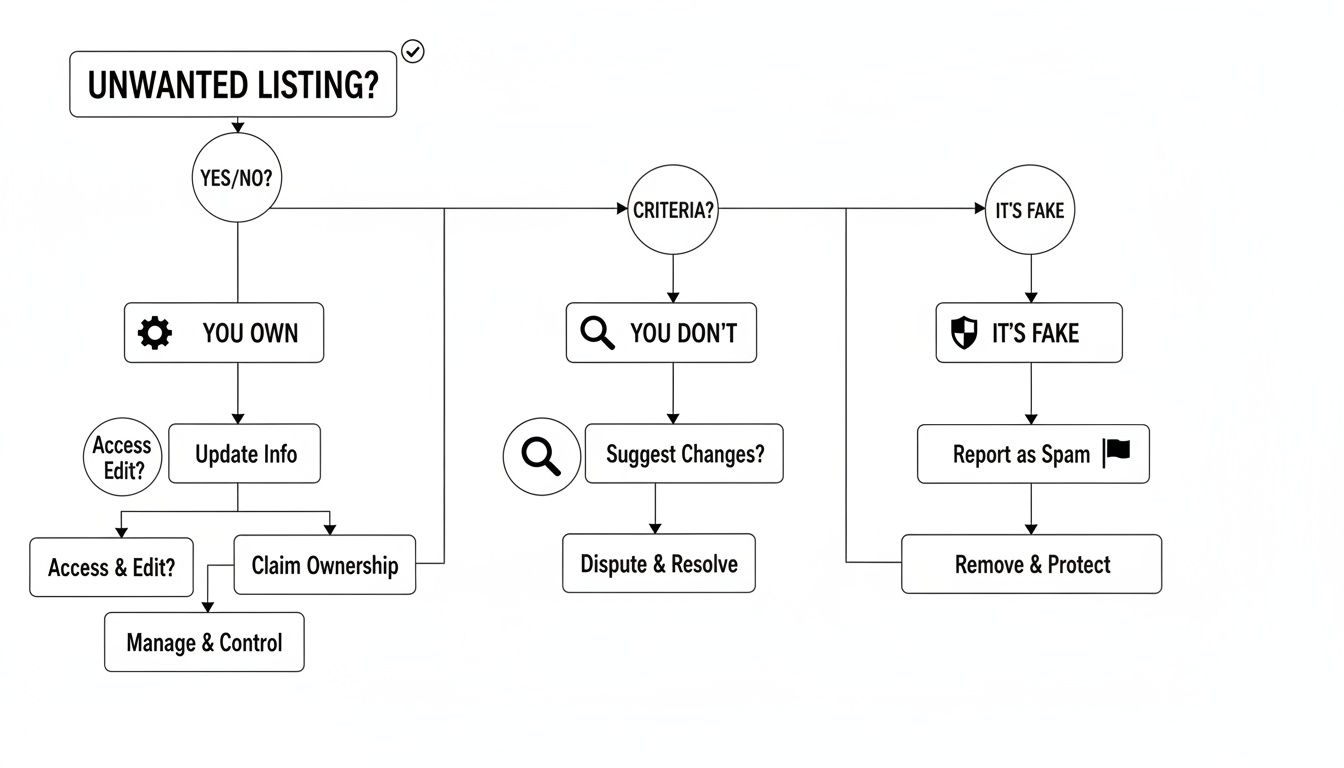
As you can see, the first question is always about your relationship to the listing. That simple answer determines whether you need to manage it from the inside, dispute it as an outsider, or report it as a threat.
Understanding Your Options
Getting these listings handled efficiently means picking the right tool for the job. Google has different pathways for different problems, and if you use the wrong one, you'll just end up frustrated with delays or flat-out denials.
Here’s a quick rundown of the main scenarios:
- You own the business profile: If you have access, your primary tool is the Google Business Profile dashboard. From there, you can mark your business as "permanently closed." This is the most common and direct method for legitimate closures.
- You're a third party: Spot an error on a listing you don't own? Maybe a local cafe closed down, but Google still shows it as open. Your go-to here is the "Suggest an edit" feature directly on Google Maps.
- You've found fraudulent activity: When you're dealing with outright impersonation, scams, or other malicious listings, you need to escalate. The Business Redressal Complaint Form is Google’s official channel for these serious issues.
To help you quickly find the right solution, here's a simple table to match your problem with the correct action.
Quick Guide to Removing Your Google Business Listing
Use this table to quickly identify your situation and the recommended action for managing an unwanted Google Business Profile.
| Your Situation | Recommended Action | Who Can Perform This? |
|---|---|---|
| You closed or moved your business permanently. | Mark the profile as "Permanently closed." | The verified business owner or manager. |
| You found an inaccurate listing for another business. | Use the "Suggest an edit" feature on Google Maps. | Anyone from the general public. |
| You discovered a duplicate listing for your business. | Merge the duplicate profiles or request removal. | The verified business owner. |
| Someone is impersonating your business with a fake listing. | File a report using the Business Redressal Complaint Form. | The legitimate business owner or a legal representative. |
| A listing promotes scams, offensive content, or is fraudulent. | Report the profile for violating Google's policies. | Anyone from the general public. |
Each of these actions requires a slightly different approach, but knowing where to start is half the battle.
Don't underestimate the scale of this problem. Google's own systems blocked or removed over 12 million fake Business Profiles in a single year. That staggering number shows just how critical it is for legitimate owners to stay vigilant and know how to fight back.
For a deeper dive, our guide on how to remove a Google My Business listing covers these steps in more detail: https://levelfield.io/blog/how-to-remove-google-my-business-listing
You can also explore other Google Business Profile management resources for broader insights. This guide will now walk you through each of these scenarios, giving you the exact steps needed to take back control.
Closing a Business vs. Deleting a Profile
When a business profile needs to come down from Google, most people instinctively hunt for a "delete" button. But here’s a piece of advice from years in the trenches: completely wiping a profile off the map is almost never the right call, and often, it's not even an option for a business that genuinely existed.
You have to understand the critical difference between closing a business and trying to delete it. Getting this wrong can leave old customers confused and create a messy digital footprint that’s a real headache to clean up later.
For the vast majority of owners whose business has shut its doors, the proper, Google-approved method is to mark the profile as permanently closed.
Why Closing Is Almost Always the Best Option
Think of marking your business as "permanently closed" as hanging a digital "Out of Business" sign on your front door. It’s the clean, professional way to do things. It immediately updates your listing on Google Search and Maps, letting everyone know you're no longer operating at that location.
This approach keeps your business name, photos, and all those hard-earned customer reviews visible. Why does that matter? This history is part of your brand's legacy. It can be surprisingly valuable if you ever decide to launch a new venture, and it also stops someone else from squatting on your old, abandoned profile.
By marking your business as closed, you stay in the driver's seat. You still control the information. A full deletion, however, creates a vacuum that can be filled with bad user-generated info or, worse, be hijacked by a scammer.
Marking a business as closed is the standard operating procedure for these common situations:
- You've shut down for good (e.g., retirement, new career).
- You've moved to a new address. The right way is to create a new profile for the new location and mark the old one as closed.
- You've completely rebranded. You'll want to create a fresh profile under the new name and close the old one to avoid confusing your customers.
When Is Deleting a Profile Actually the Right Move?
So, if closing is the default, when would you ever try to completely remove a profile? This more extreme option is really just for cleaning up digital mistakes—profiles that never should have existed in the first place.
Google’s entire system is designed to mirror the real world. A legitimate business that once operated at a physical location is a historical fact, and Google wants to preserve that record.
You’ll typically only succeed with a full removal request in a few specific scenarios:
- It was an accident. Maybe you created a dummy profile while just learning the platform.
- The info was wrong from day one. A listing was created with a fundamental error, like a major typo in the name or a completely wrong address.
- It violates Google's rules. The profile never represented a real, eligible business—for example, an online-only shop that isn't allowed a profile or a fake lead-gen listing.
Here's the bottom line: "closing" is for real businesses that have stopped operating. "Deleting" is for fixing errors or getting rid of profiles that were invalid from the start.
Trying to delete a legitimate business profile, even after it's closed, is an uphill battle. You’ll likely just run into a wall, because Google's priority is to provide a complete map of local commerce, both past and present.
How to Handle Duplicate and Fake Business Listings
Fake or duplicate listings are more than just a small annoyance; they're a direct threat to your brand's reputation and can send potential customers straight to a competitor or, worse, a scammer. A duplicate can split your hard-earned reviews and confuse Google's algorithm, while a fake profile can actively steal your clients or tarnish your good name.
Think of this as your battle plan to reclaim your online territory.
This isn't a rare problem. Recent research found that a staggering 51% of consumers came across a fraudulent business listing in the last year alone, and 23% see them at least every month. Those numbers make it crystal clear why every business owner needs to know how to get these fakes taken down. For more on this, check out this study on Google Business Profile statistics.
Finding the Rogue Profiles
First things first: you have to play detective. Don't just assume your official profile is the only one out there representing you.
Set a reminder to periodically run a few searches on both Google Search and Google Maps for your business name. Get creative and check for common misspellings or variations, since scammers love using slight differences to fly under the radar. It's also a smart move to search for your physical address to see if any other businesses are incorrectly pinned to your location.
Reporting Minor Issues and Duplicates
Let's start with the easy stuff. For simple duplicates or old listings with minor errors (like an unowned profile from a previous address), your best bet is to use Google's built-in reporting tools. This method basically flags the problem for community review.
- Find the Listing: Pull up the incorrect or duplicate profile on Google Maps.
- Suggest an Edit: Click on the profile and find the "Suggest an edit" option.
- Report It: From there, choose "Close or remove." You'll then get a list of reasons. Pick the one that fits best, like "Duplicate of another place" or "Doesn't exist here."
This approach works wonders for basic cleanup but often falls short when you're dealing with a truly malicious fake. For outright fraud, you need to bring out the big guns.
Pro Tip: When you're reporting a duplicate, always have the URL of your correct, verified Google Business Profile ready. You can usually add this in a notes field, which gives the Google review team a clear signal of which listing is the real one.
Using the Business Redressal Complaint Form for Fraud
When you find a listing that's clearly fraudulent—someone impersonating your business, running a scam under your name, or using your branding without permission—"Suggest an edit" just won't cut it. For these serious violations, you need to file a Business Redressal Complaint Form.
This form is Google's official channel for reporting fraudulent activity, and it's where you can build a detailed case with solid evidence.
To have any chance of success, you need to gather compelling proof. Your goal is to make the violation so obvious that the Google team can't ignore it.
- Photographic Evidence: Snap clear photos of your actual storefront, any official signage, and your business license. Put these side-by-side with screenshots from the fake listing, especially if it shows a bogus address or stolen images.
- Documentation: Compile links to your official website and other legitimate directory listings (think Yelp, your local Chamber of Commerce, etc.) to establish your authenticity.
- Specific Details: In your complaint, be direct and precise. Don't just say it's fake. Explain why. Is it a competitor impersonating you? Is it a lead-gen scam that has nothing to do with your business?
Filing a redressal complaint takes more effort, but it's by far the most effective weapon you have against listings that are actively trying to harm your brand. To dig deeper, you can explore the real impact fake Google My Business profiles have on businesses like yours.
What to Do With a Listing You Don't Own
It’s an incredibly frustrating experience: you find a listing for your business on Google, but it's wrong, and you have no way to access it. It’s like someone put a fake sign on your digital front door, and you don’t have the key to take it down. This is a surprisingly common problem, but rest assured, you have a path to get it sorted out.
Your first move should always be to try and claim ownership. This is the most direct route, especially if the listing is just old and unmanaged, not actively malicious. When you find the profile on Google Search or Maps, look for a link that says, “Own this business?” Clicking that is where you start.
This kicks off Google’s ownership request process. If there's a current owner, they get a notification and have three days to respond. If they approve your request or simply ignore it, Google will let you proceed with the standard verification process to gain full control.
When Claiming Ownership Fails
So, what happens if your ownership request gets denied? This is where things get tricky. It could be a former employee who won't let go, an old marketing agency that has gone MIA, or even a competitor with bad intentions. It's also possible the listing is completely fraudulent, and whoever is managing it has no intention of giving it up.
Once your claim is rejected, you need to switch gears. Your strategy pivots from claiming to reporting. Now, you’re acting as an informed third party, flagging an incorrect or harmful listing for Google's review team. Your job is to build a rock-solid case that the profile is inaccurate, misleading, or simply doesn't belong there.
The biggest mistake I see people make is giving up after a denied ownership request. Don't. You just have to change your approach. Think of it as moving from asking for the keys to proving to the landlord that you're the rightful tenant.
Building Your Case for Removal
To get a listing you don’t own taken down, you need to arm yourself with evidence. Just telling Google it's wrong isn't going to cut it. Their systems are built to trust what's already been verified, so you have to present a stronger, more credible argument.
Here’s how you can start documenting the issues and reporting them effectively:
Use the 'Suggest an Edit' Feature: For simple problems, this is a great first step. On the Google Maps listing, click "Suggest an edit," then select "Close or remove." From there, choose the reason that fits best, like "Doesn't exist here" or "Spam, fake, or offensive."
Gather Your Proof: If your edits get rejected or the issue is more serious, it’s time to escalate. Start collecting documents that prove your case. This could be photos of your actual storefront (especially if the listing shows a fake address), a copy of your business license, or even utility bills with your correct business name and address.
Document Everything: Take screenshots of the incorrect listing. Be sure to capture the wrong phone number, address, or business name. Keeping a clear record of the false information is absolutely vital when you eventually take your case to Google Support.
The more specific and well-documented your complaint is, the better your odds of getting it removed. Remember, you're asking Google to overrule information that might already be verified, and that requires a high standard of proof on your part.
Escalating Your Case to Google Support
So, you’ve tried the standard removal methods and your request has vanished into a digital black hole. What now? A lot of people throw in the towel after their first request gets denied, but don't give up. When the usual tactics fail, persistence is what gets a stubborn listing removed from Google. This is your playbook for getting real results from the Google Business Profile support system.

Let's be real: automated systems and community edits can't solve everything. For the really tricky situations—like a duplicate listing that just won't die or a malicious profile impersonating your brand—you need to get a human involved. It's not always a quick process, but it's your most powerful option when nothing else has worked.
Preparing Your Support Ticket
Before you even click that "contact us" button, you need to build a rock-solid case. A vague "this is wrong, please fix it" ticket is going straight to the bottom of the pile. The goal here is to hand the support agent a clear, concise, and evidence-backed request they can understand and resolve without a lot of back-and-forth.
Think of it like you're preparing a legal brief. Get all your ducks in a row first.
- Your Official Profile URL: The link to your correct, verified Google Business Profile. This immediately establishes who you are.
- The Problem Profile URL: The specific link for the duplicate, fake, or incorrect listing that needs to go.
- Your Case ID: Did you already try the "Suggest an edit" feature or file a redressal complaint? You should have a case ID from that. Always include this number in your new ticket. It shows you've already tried the other channels.
Building an Undeniable Case with Documentation
Evidence is everything. It’s what separates a request that gets actioned from one that gets ignored. Just saying a profile is fake isn't convincing; you have to prove it. The quality of your documentation can literally mean the difference between a fix in a few days and weeks of email tag.
You're asking a support agent to manually override what Google's system currently believes is true. They need a compelling, verifiable reason to do that. Your documentation is that reason.
Make sure to attach your supporting files directly to the support ticket. Your best bet is official, undeniable proof like:
- Business License: A clean scan showing your official business name and physical address.
- Utility Bills: A recent gas, electric, or phone bill with the business name and service address clearly visible.
- Photographic Proof: This is huge. Snap a few clear photos of your permanent sign on your building. If you're fighting a fake listing, a Google Street View screenshot of the bogus address showing there’s no business there is incredibly powerful evidence.
When you're trying to remove a business from Google Business via a support ticket, remember to be professional but persistent. State your issue plainly, attach your proof, and if you don't hear back, follow up on your case ID every few business days. This organized approach can turn a major headache into a solved problem.
Common Questions About Removing a Google Business Profile
When it comes to getting a business profile off of Google, a few questions come up time and time again. It’s a process with a lot of specific rules, so let's clear the air on some of the most pressing concerns I hear from business owners.
How Long Does It Really Take for Google to Remove a Listing?
Honestly, the timeline can be all over the map. If you're the verified owner of the profile and you just need to mark it as "permanently closed," the change is almost instant. You'll see it updated on Google Search and Maps right away.
The real waiting game begins when you’re trying to get a profile removed that you don't control. If you're just suggesting an edit to report a duplicate or a business that never existed, you could be waiting anywhere from a few days to a couple of weeks. Google has to run its own checks, and that just takes time.
If you're escalating a more serious problem, like a fraudulent listing, through the Business Redressal Complaint Form, buckle in. It can easily take two to four weeks just to hear anything back. For these situations, patience isn't just a virtue; it's a necessity.
Will I Lose All My Customer Reviews if I Remove My Business Profile?
This is a huge point of confusion, and the answer is usually no. If you follow the standard process and mark your business as "permanently closed," the profile stays up. That means all your hard-earned reviews are still visible to everyone. This is actually a good thing—it preserves your business's legacy and reputation.
True deletion, where the profile and all its reviews vanish completely, is rare. Google typically only does this when a profile has seriously violated its policies, like for spam or outright fake businesses.
And when you're cleaning up duplicate listings, the goal is never to delete reviews. You want to merge the duplicate into your main, verified profile. This process rolls all the reviews into one place, so you don't lose that valuable social proof.
What Do I Do if a Fake Listing is Using My Business Name at a Different Address?
This is brand impersonation, plain and simple, and you need to act fast. Whatever you do, don't try to claim the profile. That can make things worse by accidentally telling Google it's legitimate. Your only move here is to report it as fraud.
Start with the "Suggest an edit" option on the fake listing in Google Maps. From there, choose "Close or remove" and report it as "Spam" or "Doesn't exist." It's a quick first step that gets the problem on Google's radar.
But for a more direct and powerful approach, you need to use the Business Redressal Complaint Form. This is Google’s official channel for these kinds of problems. When you fill it out, come prepared with solid proof:
- The URL for your real, verified Google Business Profile.
- The URL for the fake listing you want taken down.
- Proof that the other location isn't real. A screenshot from Google Street View showing a different business, a house, or an empty field at that address is incredibly effective.
Hitting them with clear, undeniable evidence is the best way to get a fraudulent profile removed and protect your brand.