


So, you need to get a business listing off of Google. The first thing to know is that your approach will be completely different depending on one key factor: whether you actually manage the listing or not.
If it's your own business, you'll mark it as "Permanently Closed" from your Google Business Profile dashboard. But if you've stumbled upon a listing that's fake, incorrect, or a duplicate, your only option is to report it to Google through the "Suggest an edit" feature on Google Maps.
Should You Even Try to Remove Your Google Listing?
Before diving in, it's helpful to understand how Google thinks. Google Maps aims to be a mirror of the real world, past and present. That means completely wiping a legitimate business off the map isn't really their goal. It's actually better for everyone if Google shows a business once existed but is now closed—it saves a potential customer a wasted trip.
This is the most important distinction to grasp. How you proceed depends entirely on your relationship with the business profile.
The Two Paths: Owner vs. Outsider
The very first question you need to ask is: "Do I have access to manage this profile?" Your answer determines everything that comes next.
This decision tree breaks down the two main routes you can take.
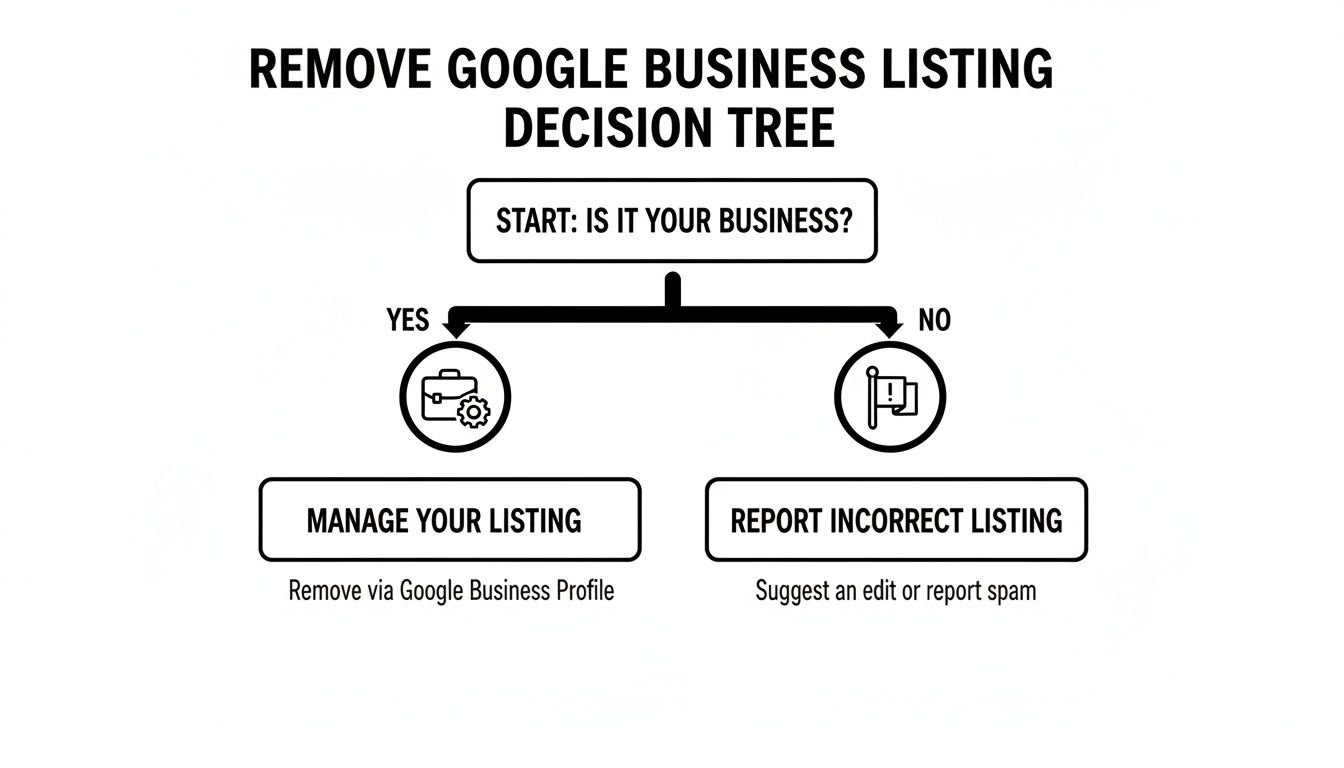
As you can see, if you control the listing, your job is direct management. If you don't, you’re basically a helpful user reporting a problem from the outside.
When You Can Get a Listing Completely Removed
True, permanent deletion—where the profile vanishes as if it never existed—is rare. Google reserves this for listings that violate its policies and shouldn't have been there in the first place.
You have a very strong case for complete removal if the listing is:
- A fake business: The profile was created for a company that never actually existed at the location. I see this a lot with lead-gen scams trying to hijack local search results.
- An ineligible profile: The listing breaks Google's guidelines. Common examples are online-only stores with no physical storefront or a "for rent" property listed as a business.
- A duplicate: Someone created an extra, unauthorized profile for your business. In this case, you need to report the duplicate to get it merged or removed, leaving only your official one.
The Bottom Line: Real deletion is for listings that are fraudulent or invalid. For legitimate businesses that have simply shut their doors, Google’s process is about updating its status, not erasing it from history.
When You Can't Remove a Listing (and What to Do Instead)
Here’s the scenario for 90% of cases: your business was legitimate, operated from a real location, and has now closed. In this situation, you almost certainly cannot get the profile permanently deleted.
The correct and most effective action is to mark the business as "Permanently Closed."
This might not feel as final as deletion, but it’s the right move. It accomplishes several key things:
- It stops the phone from ringing and prevents customers from showing up to an empty building.
- It preserves the history of your business, including all those hard-earned reviews and photos. This maintains the integrity of Google Maps as a reliable record.
- It also prevents a squatter from trying to create a new, incorrect listing for your old business down the road.
Getting this difference between updating a status and requesting a deletion is the most critical part of the process. It'll save you a ton of time and frustration by setting the right expectations from the start.
When You Directly Manage the Google Business Profile

When you're the owner or manager of a Google Business Profile, you're in the driver's seat. This is the most straightforward scenario because you have direct access to all the controls needed to update, manage, or close the listing. No need to file reports or wait for Google's approval—you can make the changes yourself right from your dashboard.
But "removing" your profile isn't a simple one-click delete. It's important to understand the different options available, as each one has a specific outcome for how customers see your business and what happens to your data.
Finding Your Profile Settings
First, you'll need to get to your profile's back-end controls. The quickest way is to just search for your exact business name on Google. As long as you're logged into the Google account that manages the profile, a special management panel will pop up right in the search results.
Look for the three-dot menu icon in that panel and click on “Business Profile settings.” This is your command center for all the heavy-lifting, including the options to close or remove your listing.
The Three Main Choices and What They Mean
Once you're in the settings, you'll see a few choices. They can sound a bit similar, but they do very different things. Picking the right one is crucial.
- Mark as temporarily closed: Perfect for short-term shutdowns, like if you're renovating or it's your off-season. Your profile stays visible, but it gets a clear banner telling customers you aren't open right now.
- Stop managing this profile: This option just removes your access. The business profile itself stays live on Google, but you can no longer edit it. This is the one to use if you’ve sold the business or are just handing over the reins to someone else.
- Mark as permanently closed and remove profile: This is the big one. It tells Google your business has shut down for good, which flags it as "permanently closed" on Search and Maps. It also removes you and any other managers from the profile.
Here's the key distinction: Even when you choose to "Mark as permanently closed and remove profile," the listing doesn't actually disappear from Google. It stays visible with a "Permanently Closed" status. This gives consumers historical context. The "remove profile" part really means removing the content and your management access from your Google account.
The Right Way to Permanently Close Your Listing
If your business has truly closed its doors, marking it permanently closed is the proper way to handle it. Before you pull the trigger, I always tell my clients to do a little housekeeping first. It saves headaches down the road.
First, download a copy of all your data. Think about it—your profile has years of photos, customer reviews, old posts, and performance insights. You can use Google Takeout to export all of this for your records before it's gone for good.
Next, give your team a heads-up. Let any other managers know the profile is being closed so they aren't caught off guard when they suddenly lose access.
Ready to go? Here's the process:
- Head into your Business Profile settings.
- Select “Remove Business Profile.”
- Choose the final option: “Mark as permanently closed and remove profile.”
Google will ask you to confirm your decision. Once you do, your profile will be updated with the "Permanently Closed" banner, and you'll no longer be able to manage it. If you want a more in-depth look at these options, this guide on managing Google My Business profile removal breaks down the nuances even further.
Following this process ensures you're doing things by the book. It’s a clean break that follows Google's guidelines, which is always the most effective path when you're managing a business profile you own.
What to Do About Listings You Don't Own
It’s incredibly frustrating to find an incorrect, outdated, or completely fake business listing that you can't control. Maybe a competitor is trying to spam the map, or perhaps the old tenant's business profile is still stubbornly attached to your new address.
While you can't just log in and delete these listings, you're not powerless. Google relies on users like you to be its eyes and ears on the ground. By flagging bad information, you help clean up the map for everyone. Your job is to build a rock-solid case that makes it a no-brainer for Google’s team to take action.
There are two main routes you can take, depending on the severity of the issue.
Reporting Methods for Listings You Don't Own
| Method | Best For | Required Evidence | Typical Response Time |
|---|---|---|---|
| Suggest an Edit | Simple, factual errors like incorrect hours, a closed business, duplicates, or a business that has moved. | Minimal, but photos or links to official websites help. | A few days to a few weeks; sometimes automated and instant. |
| Business Redressal Form | Serious policy violations: fake businesses, impersonation, lead-gen scams, or intentionally misleading info. | Detailed documentation is essential: photos, screenshots, official records, and a clear explanation. | Several weeks to a month or more; requires human review. |
Each tool has its place. "Suggest an edit" is your quick, everyday tool for minor fixes, while the Redressal Form is for bringing out the big guns when you're dealing with deliberate deception.
Using "Suggest an Edit" for Minor Corrections
The "Suggest an edit" feature is your first and fastest option, built right into Google Maps. Think of it as your go-to for straightforward problems.
This method works perfectly for things like:
- A business has clearly moved to a new address.
- The listed hours of operation are just wrong.
- The business is permanently closed, but the listing is still floating around.
- You've found an obvious duplicate of a correct, existing profile.
Just find the listing on Google Maps, click on it, and look for the "Suggest an edit" button. From there, you can either "Change name or other details" or "Close or remove." Pick the one that fits and provide the right information. The golden rule here is proof. The more you can back up your suggestion, the faster it’s likely to get approved.
Submitting the Business Redressal Complaint Form
For more serious violations, a simple edit suggestion just won't cut it. When you’re up against outright fraud, a business impersonating you, or listings designed to mislead people, you need to escalate. That’s where the Business Redressal Complaint Form comes in.
This is Google's official channel for reporting malicious content on Google Business Profile. Filing this form tells Google that you're not just correcting a typo—you're reporting a genuine policy violation.
You’ll want to use this form for situations like:
- Fake Businesses: Phantom listings created just to generate leads for a scam.
- Impersonation: Someone has set up a profile pretending to be your business, trying to poach your customers or ruin your good name.
- Misleading Information: A business is using a fake address to game the local rankings or falsely claiming to offer services they don't provide.
This process demands a higher burden of proof. You have to clearly explain how the listing violates Google's guidelines and attach solid documentation.
Insider Tip: When you fill out a redressal form, be meticulous. Lay out your evidence in a logical order, write a short, clear summary of the violation, and include direct links to the fraudulent profile and any proof you have. A well-organized case is far more likely to get a quick and decisive response from the review team.
Gathering Compelling Evidence for Removal
Whether you’re suggesting a quick edit or filing a formal complaint, your success rides on the quality of your evidence. Google’s reviewers need to verify your claim independently, so your job is to make it as easy as possible for them.
Here’s the kind of proof that gets results:
- Photographic Evidence: Clear, geotagged photos are king. If a listing claims to be at an address where it doesn't exist, a photo of the building's front showing the correct business (or no business at all) is incredibly powerful. An image of an empty storefront is hard to argue with.
- Official Records: Provide links to government business registries, property records, or your own official website to establish the correct information.
- Screenshots: If a listing is full of deceptive claims or spammy keywords, screenshots capture the violation before the owner can cover their tracks.
Thankfully, Google has been stepping up its game. In late 2024 and early 2025, the company seriously ramped up its efforts to fight fake reviews and phony profiles, purging thousands of suspicious entries to improve local search quality.
According to Birdeye's 2025 report on Google Business Profiles, this crackdown directly penalized profiles that violated artificial engagement rules. This is great news for you. It means Google is more receptive than ever to well-documented complaints about fraud, making your efforts much more likely to pay off.
Troubleshooting Common Google Listing Removal Issues
Sometimes, you follow all the right steps, but that rogue listing just won't budge. We've all been there. You get a denial, or a duplicate you thought you killed suddenly reappears. It’s frustrating, but when you hit a wall, it’s time to shift from simply reporting to actively troubleshooting the problem.
This part of the process requires patience and a more strategic game plan. You'll need to build a much stronger case, gather better evidence, and know exactly how to escalate your issue when the automated systems and first-level reviewers let you down.
What to Do When Your Removal Request Is Denied
Getting that "Your edit was not accepted" notification is deflating, but it’s rarely the end of the road. A denial usually just means the initial evidence you sent wasn't strong enough for Google's team to make a confident decision.
So, your first move is to beef up your evidence. A single photo or a quick note isn't going to cut it.
- For a non-existent business: Get out there and take multiple, geotagged photos of the address from different angles. Make sure you get a clear shot of the street number on the building and a wider view showing there’s absolutely no signage for the phantom business.
- For an incorrect location: Find the business's official website and grab the link to their contact page showing the correct address. If you can, a photo of their new storefront, complete with clear signage and address numbers, is gold.
- For a duplicate listing: Don't just say it's a duplicate. Spell it out. Provide a link to the correct, official profile and explain why the other one is wrong (e.g., "This is an old listing from before we moved").
Once you have this more compelling package of evidence, re-submit your "Suggest an edit." More often than not, a second attempt with solid proof is all it takes to get the change approved.
Dealing With Stubborn Duplicate Listings
Duplicate listings are a classic headache, and some of them can be incredibly persistent. This usually happens when Google’s own system pulls data from other online directories and automatically creates a profile, which then clashes with the official one you manage.
The key here is to prove, beyond a doubt, which listing is the authoritative one.
First, make sure your primary, correct listing is flawless. It needs a complete description, accurate hours, high-quality photos, and a few recent posts. A well-maintained profile simply looks more legitimate to Google's algorithms and human reviewers.
Next, go to the incorrect listing, use the "Suggest an edit" feature, and specifically mark it as a duplicate of your official profile.
If the duplicate is still hanging around after a week or two, it’s time to escalate. Contact Google Business Profile support directly. Be ready with the URLs for both the correct profile and the duplicate, and lay out the situation clearly.
Expert Tip: When you contact support, have proof of ownership ready to go. Documents like a utility bill, business license, or a lease agreement showing your business name and address are invaluable. This documentation can turn a weeks-long back-and-forth into a quick resolution.
How to Regain Control of a Hijacked Profile
In a more alarming scenario, you might discover someone else has claimed and is managing your legitimate business profile. This is a five-alarm fire, and you need to act immediately to reclaim what's yours.
Start by going to your business profile on Google and look for the "Own this business?" or "Claim this business" link. Clicking this will kick off the ownership request process, and Google will notify the current profile manager that you’re challenging their ownership.
If they ignore or deny your request, you can appeal. This is where your documentation becomes absolutely critical. You need to provide irrefutable proof that you are the rightful owner. Get these documents ready:
- Official Business Registration: Your state or federal business license.
- Proof of Address: A recent utility bill (gas, electric, water) or a phone bill in the business's name.
- Visual Evidence: Photos of your permanent storefront signage.
Submitting a strong appeal with this kind of evidence gives Google's team everything they need to verify your claim and restore your access. Don't wait on this—the longer a hijacker has control, the more damage they can do to your reputation with fake reviews or incorrect information.
Finally, keep in mind that sometimes a listing issue isn't what it appears to be. For example, recent algorithm updates aimed at filtering out bot traffic have caused sharp drops in impressions for many profiles. Reports from late 2025 showed that impression counts often fell by 50% or more after Google tightened its bot filtering, which could easily be mistaken for a listing being removed or suppressed. You can see more on how these updates impact genuine engagement and why tighter verification can sometimes make old duplicates finally disappear.
Proactive Management to Prevent Future Profile Problems
The best way to protect your online presence is to stop playing defense. Instead of waiting for a duplicate listing or a scammer to pop up, you can build a strong, authoritative profile that naturally keeps these problems at bay. A well-maintained Google Business Profile is more than just an SEO tool—it's your first and best line of defense.
Think of your profile like a garden. If you neglect it, weeds (like fake listings and bad data) will take over. But if you tend to it carefully, it will thrive, leaving no room for unwanted growth. Regular maintenance proves your profile's legitimacy to Google, making it far less likely to get flagged or buried by automated systems.
Perform Routine Profile Audits
Proactive management starts with a consistent audit schedule. You can't just set it and forget it. Your business details change, and so does Google’s platform. A quarterly check-in is a great place to start.
When you audit your profile, go through every single piece of information. The little details matter most:
- Core Information: Is your business name, address, and phone number (NAP) 100% correct and consistent everywhere online?
- Service Areas & Categories: Have you added new services? Stopped offering old ones? Make sure your categories truly reflect what you do today.
- Operating Hours: Check your regular and special hours, especially for upcoming holidays. Nothing frustrates a customer faster than showing up to a closed business when Google said it was open.
- Photos and Videos: Are your images current and high-quality? Old photos can make a business look out of date or even permanently closed.
This simple cleanup routine prevents the kind of data confusion that leads Google’s algorithm to create a duplicate listing based on old information it scraped from some obscure directory.
Adapt to Google's Platform Changes
Google's platform is always in flux, and staying on top of these changes is key. For example, Google is constantly tweaking how it handles user-generated content, and knowing what's coming allows you to adjust your strategy before a problem hits.
A perfect example is Google's plan to phase out the manual Q&A feature on Business Profiles. The Q&A API was shut down in late 2025, and the public-facing feature is slated for removal by early 2026. It's being replaced with an AI-powered "Ask Maps" feature that pulls answers directly from your profile's content.
Key Takeaway: A proactive strategy means more than just keeping your information current; it's about anticipating how platform updates will impact your visibility. Filling your profile with detailed service descriptions, a thorough FAQ section, and regular posts is essentially feeding the AI the right answers about your business.
Solidify Your Profile with Rich Content
A bare-bones profile is a weak one. The more high-quality, relevant information you add, the more authoritative your listing becomes. This makes it much harder for fake listings to gain any traction and helps Google recognize your profile as the single source of truth. Before you ever have to worry about removal, learn how to optimize your Google Business Profile to build that authority from the start.
Consistently adding fresh content signals to Google that your business is active and engaged.
- Google Posts: Share regular updates, promotions, and company news.
- Service/Product Lists: Detail everything you offer with clear, helpful descriptions.
- Customer Reviews: Actively ask for reviews and always respond—good or bad—to build trust.
This isn't just about rankings; it's about creating a deep, defensible digital footprint. A richly detailed profile is far less likely to be challenged by duplicates or fraudulent claims. The https://levelfield.io/whitepaper/impact-fake-google-my-business-profiles can be devastating, so building this defensive moat is a critical investment of your time. By taking these steps, you shift from constantly putting out fires to confidently managing the one profile that truly matters.
Answering Your Top Questions About Google Listing Removals
It's one thing to follow the steps, but it's another to deal with the real-world quirks that pop up. After helping countless businesses navigate this process, I've seen the same questions come up time and time again.
Let's clear up some of the most common uncertainties you might have about timelines, reviews, and tricky situations like a hijacked profile.
How Long Does It Take for a Business Listing to Be Removed?
The honest answer? It completely depends on how you're doing it.
If you have access to the profile and mark it as "Permanently Closed," the change is usually live on Google almost immediately. You'll see that red "Closed" banner show up right away, which is great for instantly letting customers know what's going on.
But if you're trying to report a listing you don't own, you're on Google's timeline, not yours.
- Suggest an Edit: For a simple error, like an old business still showing at your address, Google's automated systems might catch it and make the change in a few days.
- Business Redressal Form: When you're reporting something more serious—think scams or fake businesses—a real person has to review it. This can easily take several weeks, sometimes even a couple of months, depending on how clear your evidence is and how busy they are.
When you're reporting, there's no magic number. Your best bet is to submit a thorough report and be patient.
Will Marking a Business as Closed Get Rid of My Reviews?
Nope. Marking your business as "Permanently Closed" does not get rid of your customer reviews. Your entire profile, reviews and all, sticks around on Google as a sort of historical record for other users.
The only thing that changes is that Google adds a big banner telling everyone you're closed. This is a huge deal for your long-term reputation—that online footprint doesn't just disappear when you shut your doors. The only way to remove a review is if it specifically violates Google's content policies, and even then, you have to flag it and hope they agree.
What if Someone Else Claimed My Business Listing?
This is an incredibly frustrating situation, but it's fixable. If you find out someone has hijacked your business profile, you need to start the ownership request process immediately. Find your business on Google Maps, and you should see a link that says "Claim this business."
Clicking that sends a notification to whoever currently controls the profile. If they're a good actor who made a mistake, they might transfer it. More likely, they'll either deny your request or just ignore it. That’s when you appeal.
To win an appeal, you have to prove you're the rightful owner. Get your documents in order before you start.
You'll absolutely need things like:
- Your official business registration or license.
- A utility bill with the business name and address.
- A clear photo of your permanent sign on your building.
Having this ready from the get-go will make the process of reclaiming your profile so much faster.
Can I Delete a Listing That Never Existed at My Address?
Yes, you can, and this is one of the rare cases where you can get a listing wiped off the map for good. If a totally fake or incorrect business is pinned to your address, you have a solid argument for its complete removal.
Start with the simple "Suggest an edit" option on the listing and choose the reason that it "Doesn't exist here." If it feels more malicious, like a scam or someone trying to impersonate a legitimate business, don't stop there. Escalate it by filling out the Business Redressal Complaint Form.
The key is proof. Take a clear photo of your building or storefront, showing that no such business is there, and include it with your report. This kind of evidence is exactly what Google's team needs to justify a full takedown.