


So, you're trying to figure out how to get a business listing off of Google. It’s a common question, but the answer isn't as simple as hitting a "delete" button. Google's whole approach is built around creating a complete public record, so they don't make it easy to just wipe a business off the map.
Instead, you have a few ways to handle it: you can remove your ability to manage the profile, officially mark the business as permanently closed, or, in special cases, ask Google to remove it entirely.
Why Can’t I Just Delete My Google Business Listing?
It’s a source of frustration for many business owners, but this is intentional. Think of Google Maps and local search as a modern-day, interactive phone book. Its main job is to give people a reliable, historical record of businesses. A listing isn't just your marketing tool; it's a piece of public information.
Even after a business shuts down, people might still search for it. They might want to see what happened, find an old phone number, or read through past reviews. If the listing vanished completely, it would leave a hole in the public record and could lead to confusion.
That’s why Google gives you tools to manage your profile’s status rather than just deleting it. This keeps the public information accurate while still giving you a degree of control.
Getting a Grip on Your Management Options
It helps to think of your relationship with your Google Business Profile as being a manager, not the absolute owner of the data. That distinction is key. And before you jump into removing anything, it's worth understanding what local SEO marketing entails, because your profile is a huge part of that. Knowing how to manage it is a powerful skill.
Here’s a quick comparison of the main ways you can handle an unwanted profile and what each method actually does.
Google Business Profile Removal Options Compared
| Method | What It Does | Is The Listing Still Visible? | Best For |
|---|---|---|---|
| Remove Management Access | Severs your connection to the profile. You can no longer edit it or see its insights. | Yes | Selling the business, leaving a job where you managed the profile, or fixing ownership issues. |
| Mark as Permanently Closed | Clearly labels the business as closed on Google Maps and Search. | Yes, but with a "Permanently Closed" status. | Businesses that have shut down, moved, or rebranded under a new name. |
| Request Full Removal | Asks Google to completely delete the listing from its database. | No, if Google approves the request. | Fake/spam listings, duplicate profiles, or businesses that never existed. |
So, what's the right move for you? For the vast majority of legitimate businesses that have simply closed up shop, marking the profile as "Permanently Closed" is the correct and intended path. It’s the most honest way to update the public record without trying to rewrite history.
If you’ve sold the business, the best practice is to transfer ownership to the new owner, not just remove yourself. But if you’re dealing with a fake profile that’s impersonating your brand, that's when you'll want to go down the path of requesting a full removal.
Marking Your Business Closed the Right Way
So, you've shut down your business. For most people in this situation, the best move isn't to try and delete your profile entirely, but to mark it as "Permanently Closed."
This is the official method Google wants you to use. It keeps your business's history—all those hard-earned reviews and photos—on the map, but clearly tells everyone you're no longer open for business. Think of it less like wiping your business off the face of the earth and more like putting a permanent "Closed" sign on your digital front door. It’s the cleanest way to avoid confusing potential customers who might otherwise show up to an empty building.
Finding the Right Settings in Your Profile
First things first, you need to be logged into the Google account that actually manages the business profile. Google is always tweaking its interface, but the core path to get this done is pretty much the same whether you start from a Google search or on Maps.
You're looking for your main business dashboard. Once you're in, find the main button to make changes—it's almost always called “Edit profile.”
- Get to Your Profile: Search for your business by name on Google or find it on Maps. You should see the management panel pop up.
- Open the Profile Editor: Click on the "Edit profile" button. This is your gateway to changing all the core details about your business.
- Head to the "Hours" Section: Inside the editor, you'll see several tabs like "About," "Contact," and so on. Click on the one labeled "Hours."
It might seem a bit counterintuitive, but this "Hours" section is where you control the overall operational status of your business, not just the daily times.
Flipping the Switch to "Permanently Closed"
Once you're in the "Hours" settings, you’ll see your regular business hours listed. Right near the top, look for a pencil icon or an "Edit" link next to the "Hours" title. Clicking that will open up the status options.
You'll see a few choices. Just select the radio button for "Permanently closed" and—this is the most important part—don't forget to hit "Save."
What Happens Next? After you save, Google gets to work. You should see the red "Permanently closed" label appear on your public listing pretty quickly, often within a few hours. That said, don't be surprised if it takes up to 48-72 hours for the change to show up everywhere across Google Search and Maps.
Cutting the Cord: Removing Your Management Access
After you've confirmed the "closed" status is live, you have one more optional step. You can remove yourself as a manager of the profile. This is a good idea if you just want to tidy up your own Google account and stop getting notifications for a business that no longer exists.
Here’s how to do it:
- Navigate back to your Business Profile settings.
- Find the option for "Remove Business Profile."
- When prompted, choose to "Remove profile content and managers."
Just be aware, this is a final step for you. Following these prompts severs your connection to the profile for good. If the business ever magically came back to life and you needed to manage it, you'd have to start from scratch and verify ownership all over again. It’s a true clean break.
Dealing With Duplicate and Unauthorized Listings
Sometimes the listing you need to get rid of isn't one you own or control. These rogue profiles can be a real headache—duplicates that confuse customers, old listings from a previous owner, or even malicious fakes set up to hurt your business. These can do serious damage to your brand's reputation and your bottom line.
Taking on these listings requires a different strategy than just marking a business as closed. Here, you're acting more like a helpful community member flagging bad information for Google's review team. The secret is to provide clear, undeniable proof that the listing is wrong. Before you dive in, it's a good idea to use a local listing scan service to find all instances of your business online. You might be surprised by what you find.
Starting With "Suggest an Edit" for Simple Fixes
For straightforward problems, like a clear duplicate listing pointing to an old address, the "Suggest an edit" feature on Google Maps is your best first move. It’s designed for quick, community-driven corrections and usually works well for obvious errors.
It’s pretty simple:
- Pull up the incorrect business listing on Google Maps.
- Click the “Suggest an edit” button.
- Choose the “Close or remove” option.
Google will then ask for a reason. Pick the one that fits best, like “Duplicate of another place” or “Doesn’t exist here.” If you can, add a photo to back up your claim—a picture of the current storefront or building directory is perfect evidence.
When to Escalate to the Business Redressal Complaint Form
What if "Suggest an edit" doesn't do the trick, or you're dealing with something more serious like outright fraud? It's time to bring out the heavy hitter: the Business Redressal Complaint Form. This form is Google’s dedicated channel for reporting misleading information and fraudulent activity that violates their policies.
This is the right tool for major issues, such as:
- A competitor setting up a fake listing at your address to steal your customers.
- Someone creating a completely fabricated profile to impersonate your business.
- A listing with a name stuffed full of keywords (e.g., "NYC Best Pizza - Italian Food - We Deliver").
When you fill out this form, details are everything. Don't just say it's wrong; explain why it's fraudulent and provide a link to your correct, legitimate profile. The more evidence you give Google, the faster they can take action. The impact of fake Google business profiles can be significant, so you want to get these taken down quickly. https://levelfield.io/whitepaper/impact-fake-google-my-business-profiles
My Advice: When you submit your report, keep it professional and specific. Instead of just writing, "This is fake," try something like, "This business does not operate at this address. Our verified business, [Your Business Name with a link to your profile], is the sole occupant. This unauthorized listing is causing significant customer confusion."
This isn't happening in a vacuum. Google has been cracking down hard on spam and policy violations. In fact, since 2023, Google Business Profile suspensions have shot up by over 80%. This aggressive cleanup removed more than 115 million policy-violating reviews in 2023 alone, which shows you just how seriously Google is taking the quality of its data.
This flowchart is a great little guide for deciding whether you should mark your business closed or just keep it active.
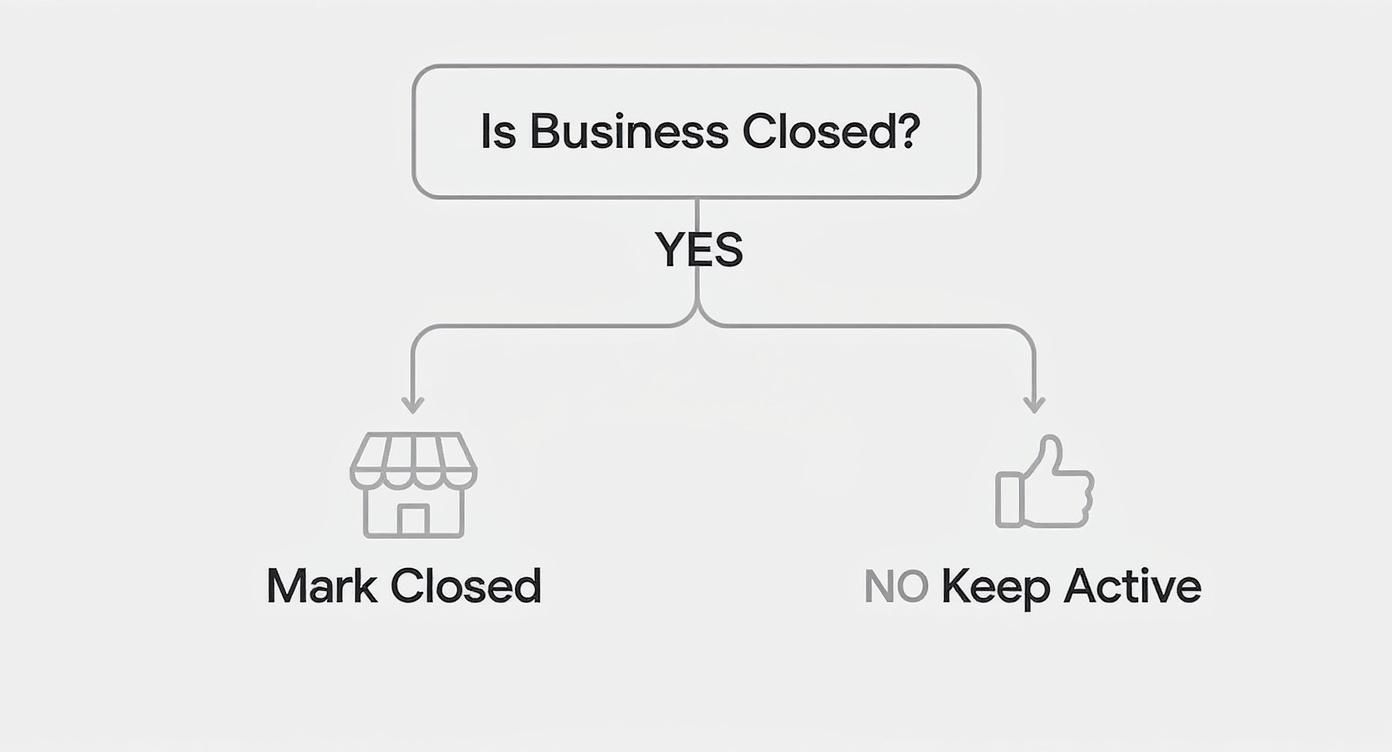
At the end of the day, it's simple: if your business is still running, you want to maintain your profile, not remove it. But if you've truly shut down for good, marking it permanently closed is the right call.
When Professional Removal Services Make Sense
Standard methods, like marking your business "closed," often do the trick. But what happens when the situation is messier? Sometimes, an old Google Business Profile isn't just outdated—it’s a live liability, packed with damaging old reviews or flat-out wrong information you need gone for good.
This is exactly when a professional removal service might be worth looking into. It’s a practical, though not inexpensive, option for businesses that truly need a clean slate. Simply closing the listing just doesn't cut it when bad reviews are scaring customers away from your new venture or the old digital footprint is causing serious brand confusion.
Why DIY Isn't Always the Answer
For most business owners I talk to, a complete wipe is the dream scenario. The tough pill to swallow is that Google’s built-in tools aren't designed for total deletion. That’s by design—they want to maintain a historical public record.
Recent changes have made this even clearer. As of 2025, Google stopped letting business owners directly delete their own profiles. You can still mark a listing as "Permanently closed," but the profile and all its reviews will almost certainly stick around. If you want every trace gone—reviews and all—you'll likely need to work with an external online removal service. You can learn more about how these Google Business removal services work to get a feel for the process.
So, you're left with two very different paths:
- Marking Closed: This is just a status update. The listing and its history stay right where they are.
- Professional Removal: A service focused on completely scrubbing the listing from Google's public view.
Evaluating the Claims and Costs
Many of these services make some pretty bold claims, like promising a full deletion within 24 hours. From what I’ve seen, that can happen, but it’s smart to approach these promises with a healthy dose of skepticism. Always do your homework before you hand over any money.
Their biggest selling point is the removal of all reviews, good and bad. For a business trying to escape a tarnished reputation, that can be a complete game-changer.
Key Takeaway: The decision to hire a pro boils down to a cost-benefit analysis. Is the ongoing damage from an old, negative listing costing you more in lost revenue and brand harm than the one-time fee for a removal service?
For businesses facing severe reputational damage or dealing with complex issues like rogue listings that Google Support won’t touch, these services can be a lifesaver. You can dig into the specifics of Google My Business content removal to see if it’s the right fit for you. At the end of the day, it's about taking back control of your online story when the standard options just aren't enough.
Why Deleting and Recreating a Profile Is a Risky Move
When your Google Business Profile gets suspended, the first instinct is often panic. It’s tempting to think the easiest fix is just to scrap the whole thing and start over. I've seen it countless times—a business owner, frustrated with the reinstatement process, decides to just delete the problem profile and create a new one.
But let me be clear: this is one of the worst things you can do for your local search presence.
Think of your business profile as a digital asset that you've built over time. It’s got history. It’s accumulated reviews, photos, customer questions, and a certain level of trust with Google. Wiping it out is like tearing down an established storefront and putting up a lemonade stand.
Your new profile starts from absolute zero. No history. No authority. None of the ranking signals your old profile spent months, or even years, earning. You’re essentially telling Google you're a brand new, unproven business that has to earn its trust all over again from scratch.
The Immediate SEO Consequences
The fallout from this "nuke and pave" strategy is swift and brutal. I’ve seen this happen firsthand, and discussions in local SEO forums back it up: businesses that do this see their rankings completely tank, often overnight. It’s not an exaggeration to say a business ranking in the top 5 local results can disappear to page six or seven, becoming totally invisible. You can find real-world examples of the severe ranking drops after recreating a profile to see just how damaging this is.
This freefall can last for weeks, sometimes months, no matter how perfectly you set up the new listing. Google's algorithm is wary of brand-new profiles, and the complete loss of all your historical ranking power is a massive hole to climb out of.
Expert Insight: Dealing with a suspension is frustrating, I get it. The reinstatement process can feel like a bureaucratic nightmare. But it is always the better path. A reinstated profile comes back with all its history, reviews, and ranking authority intact—precious assets you can never get back with a new listing.
A Better Path Forward
Instead of hitting the delete button, channel that energy into fixing the suspension. Go through Google's policies with a fine-tooth comb, find the likely violation, correct it on your end, and then submit a thorough reinstatement request. This approach is all about protecting the valuable SEO equity you’ve already built.
Before you make a rash decision, just think about what you're permanently losing:
- All Your Reviews: Every single customer review—gone forever.
- Your Entire History: Years of photos, posts, and helpful Q&A data will simply vanish.
- Ranking Authority: Your local search authority gets a hard reset to zero.
The road to reinstatement can be bumpy, but it preserves the digital asset you’ve worked so hard to build. Starting over is almost never the shortcut you think it is.
Common Questions About Removing Google Business Listings
Once you've gone through the steps to remove a Google Business Profile, a few lingering questions often pop up. It's totally normal to wonder what happens to your old reviews or how long it actually takes for changes to go live.
Let's clear up those final details so you can feel confident about the whole process.
Will Marking My Business Closed Remove Old Customer Reviews?
This is a big one, and the short answer is no.
When you mark a business as "Permanently closed," the profile itself doesn't just vanish. It stays right there on Google, complete with all its photos, information, and, yes, every single customer review—the good, the bad, and the ugly.
All that really changes is a big red "Permanently closed" label gets slapped on it, signaling to potential customers that you're no longer open. Google does this to maintain a historical record of businesses. Getting a profile and its reviews completely wiped is extremely rare and usually only happens in very specific circumstances, not just for a standard closure.
How Long Until Google Shows My Business as Closed?
Usually, it's pretty quick. You can often see the red "Permanently closed" banner show up on your public listing within a few hours, though it can sometimes take a couple of days.
Don't panic if you don't see it right away. In my experience, it can occasionally take up to a week for the update to fully roll out across all of Google Search and Maps. If you've waited more than 7 days and nothing has changed, that’s your cue to reach out to Google Business Profile support for a nudge.
What if Another Business Is Using My Address?
Discovering another company is using your physical address on their Google listing is frustrating and can cause real confusion for your customers. You need to report it right away.
Here’s the most direct way to handle it:
- Pull up the incorrect business listing on Google Maps.
- Find and click on the “Suggest an edit” button.
- From there, choose “Close or remove.”
- Select the most fitting reason, like “Doesn't exist here” or even “Spam.”
A little pro tip: Use the comment field to be crystal clear. I'd write something specific like, "This business is not located at this address. My verified business, [Your Business Name], operates here." If it looks like a more serious or fraudulent situation, you can take it a step further and use the Business Redressal Complaint Form to escalate the issue.
Can I Reopen a Listing After Marking It Closed?
Absolutely. And this is precisely why marking a profile as "closed" is often a much better move than trying to get it completely deleted. It gives you the flexibility to come back later.
To bring it back to life, you just need to sign back into your Google Business Profile dashboard. Be prepared to go through the verification process all over again. Google will want to confirm you're really back in business at that location, which almost always means waiting for that little verification postcard to arrive in the mail.