


Getting rid of a Google Business Listing you don't actually control means you'll have to report it—usually through Google Maps—as non-existent, fake, or a duplicate. If you do manage the listing, you can remove it from your account dashboard. Just know that this often just orphans the profile, leaving it unmanaged, rather than deleting it from Google entirely.
When Is Deleting a Google Business Listing the Right Move?
The need to delete a Google Business Listing usually pops up when there’s a direct threat to your brand’s reputation and, let's be honest, your revenue. This isn’t just about tidying up your digital footprint; it's about protecting the business you’ve built from misinformation or even malicious attacks. A fraudulent or just plain wrong profile can cause real, measurable damage.
Think about it. A local plumber might discover a fake competitor using a similar name and their address, stealing emergency calls right out from under them. Or a law firm could be fighting a duplicate, unmanaged profile that’s collecting negative reviews meant for a completely different business, torpedoing their hard-earned star rating. I've seen these scenarios play out, and they are incredibly frustrating for business owners.
The Real-World Impact of Bad Listings
These phantom listings sow confusion, chip away at customer trust, and can directly hit your bottom line. They might display the wrong phone number, list incorrect hours, or become a hub for slanderous reviews. The threat isn't just theoretical.
Imagine pouring your heart into your small business, only to find a fake Google Business Profile is out there impersonating you, poaching customers with bogus reviews and wrong information. This isn't some rare occurrence—a staggering 51% of consumers have stumbled upon a fake business listing in the past year.
This is exactly why knowing how to delete a Google Business Listing is such a vital skill. It's a fundamental part of managing your online reputation and making sure customers find the right information about you.
Deciding Your Course of Action
Before you rush to hit "delete," it's important to understand your options. Sometimes, complete removal is the only answer. In other cases, simply marking a business as "Permanently Closed" is the smarter move. The distinction is crucial because each action leads to a different outcome on Google.
Choosing to delete versus marking a listing as closed depends entirely on the situation. Deleting is for fraudulent, duplicate, or non-existent listings. 'Closed' is for legitimate businesses that have simply ceased operations. Making the wrong choice can create a bigger headache down the road.
To help you figure out the best path forward, I’ve put together this quick-glance table. It breaks down the most common situations and gives a clear recommendation, so you can make an informed decision that fits your specific needs. Before locking in your choice, it’s always a good idea to run a comprehensive local listing scan to see exactly where your business—and any potential duplicates—are showing up online.
Delete vs Mark as Closed Deciding the Right Action
| Scenario | Recommended Action | Reasoning |
|---|---|---|
| A fake listing is impersonating your brand. | Delete (Report as Spam/Fraud) | This listing is illegitimate and actively harming your business. It needs to be removed entirely to stop customer confusion and protect your reputation. |
| An old, unmanaged duplicate of your business exists. | Delete (Report as Duplicate) | A duplicate splits your reviews and SEO authority. Merging or removing it consolidates your online presence into a single, accurate profile. |
| You have permanently closed your business. | Mark as Permanently Closed | This informs customers that the business no longer operates, preventing them from visiting. The listing remains on Google but is clearly marked. |
| You are moving to a new address. | Edit Address (Do not delete) | Deleting your profile would erase your reviews and history. Simply update the address to maintain your existing profile's authority and customer trust. |
Choosing the right option from the start saves a ton of time and prevents future issues. If your situation matches one of the "Delete" scenarios, it's time to take action.
Taking a Verified Profile Off Your Hands
So, you've got direct control over your Google Business Profile and you're ready to delete it. The process itself is pretty simple, but don't jump the gun. You need to understand what "deleting" actually means in Google's world, because it's not what most people think.
This isn't like deleting a social media post that just vanishes. When you "remove" a profile you manage, you're essentially just giving up the keys. You're not wiping it off the map. More often than not, the listing stays right there on Google, complete with all its reviews and photos, but now it's marked as "unclaimed." This means anyone, including a competitor, could potentially swoop in and claim it.
And let's be clear: this is a one-way street. Once you remove it from your account, your access is gone for good. If you ever change your mind, you’ll have to start from scratch with the entire verification process.
First Things First: Download Everything You Own
Before you click a single button to remove the profile, stop. Your first and most important job is to download a complete copy of all your business information. Think about all the assets your profile has collected over time—customer reviews, photos you’ve painstakingly uploaded, posts you’ve crafted, and all those performance metrics. Once you remove your access, all of that is lost forever.
Google makes this easy with a tool called Google Takeout. It lets you export a full archive of your profile data. Think of it as packing up the important files from your office before you move out. It’s a simple step, but I'm always surprised that less than 20% of business owners actually do it, leading to a ton of regret later when they realize their valuable data is gone.
How to Remove a Single Profile You Manage
Okay, with your data safely backed up, you're ready to proceed. You'll handle everything right from your Google Business Profile settings.
This screenshot shows the exact spot you're looking for to start the removal process.
Getting to this menu is the point of no return for relinquishing control from your account.
Here’s how you get there:
- Sign in to the Google account that manages the Business Profile.
- The easiest way to find your profile is to just search for your business name on Google.
- Look for the three-dot menu icon and click it, then select Business Profile settings.
- From that menu, choose Remove Business Profile, and then click on Remove profile content and managers.
That last option is the one that officially cuts the cord between you and the listing.
Dealing With Multiple Locations in a Business Group
If you’re managing multiple business locations under one account, you need to be extra careful. The process is almost the same, but you have to make sure you're only removing the one location you intend to.
From your main Business Profile Manager dashboard, you must first select the specific profile you want to remove before you go through the steps. It’s a disastrously common mistake for people to accidentally remove the entire business group instead of just one location. Take a breath and double-check you've isolated the correct listing before hitting that final confirmation.
A common scenario I see is a franchisee who closes one of their three locations. They rush through the process and mistakenly remove the entire parent profile. This instantly un-verifies their other two profitable stores, making them vanish from local search and bringing customer calls to a screeching halt. Always be meticulous.
Before you make a final decision, it's worth understanding the bigger picture of how Google displays business information. For instance, mastering the Google Knowledge Panel can give you incredible insight into what happens to your business's data after you let go. This knowledge helps you predict how your brand will look online after the removal and what you might need to do to protect its reputation.
How to Remove Listings You Don’t Control
Tackling a rogue Google Business listing feels like a street fight you never asked to be in. Whether it's a duplicate of your own business siphoning off customers, a fraudulent competitor using spammy tactics, or an old, non-existent location still haunting the map, these unmanaged profiles cause real-world damage.
The good news is you have a playbook to fight back. You just need to know which moves to make.
The whole game hinges on one thing: evidence. You can't just point at a listing and tell Google it's fake; you have to build a solid case. This means gathering proof, using the correct reporting channels, and explaining why the listing violates Google's policies in a way that's impossible to ignore.
Pinpointing the Right Takedown Strategy
Your approach needs to change based on the type of rogue listing you're dealing with. Taking down a duplicate of your own business is a totally different process than flagging a competitor who's stuffing keywords into their business name.
Each scenario demands its own set of evidence and a specific reporting path.
Let's break down the most common situations you'll run into:
- Reporting a Duplicate of Your Business: This is for when two listings exist for the same business at the same location. The goal here is to have Google merge the duplicate into your main, verified profile, which consolidates all your hard-earned reviews and SEO authority.
- Flagging a Fake or Non-Existent Business: This is for listings representing a business that simply isn’t there. Think of a lead-gen company posing as a local plumber with a fake residential address.
- Correcting a "Permanently Closed" Business: Sometimes, a legitimate business shuts down, but its listing lingers on the map. Reporting it as permanently closed is just good digital housekeeping for everyone.
- Reporting Policy Violations (Spam): This is for legitimate businesses that are bending the rules. Classic examples include stuffing keywords into their name ("Joe's Plumbing - Best Plumber NYC") or using a P.O. Box as their physical address.
Successfully removing these rogue listings isn't just about tidying up the map—it’s a powerful SEO strategy. Spammy and fake Google Business listings are notorious for tanking legitimate rankings. In fact, local SEO experts agree that the 'removal of spam listings through spam fighting' is one of the most impactful activities you can do to improve your own Map Pack position. A cleaner search environment directly helps your visibility. You can find more insights on how spam fighting impacts rankings over at Blogging Wizard.
Gathering Your Arsenal of Evidence
Before you even think about filing a report, you need to assemble undeniable proof. The people reviewing these requests at Google are swamped, so your job is to make their decision easy. Your evidence should be so clear and compelling that it leaves no room for doubt.
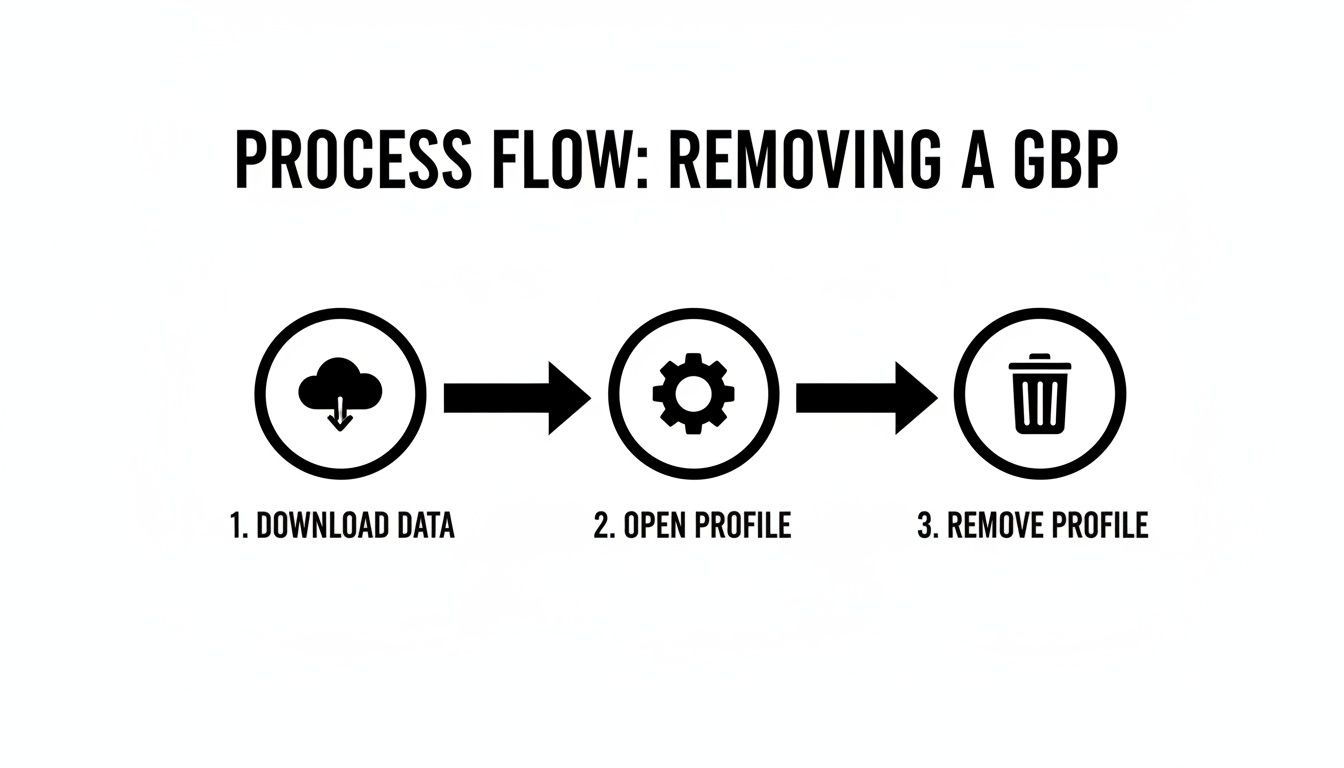
This process flow shows that securing your data is the first critical step before you open the profile settings to initiate a removal, making sure no valuable information gets lost.
So, what kind of evidence actually works?
- For Duplicates: Screenshots showing both your verified listing and the duplicate, with matching names and addresses side-by-side.
- For Non-Existent Locations: Photos of the physical address showing no signage, or that another business is there. A close-up picture of the front door with the address number clearly visible is incredibly powerful. Even a short video walking up to the location can seal the deal.
- For Spammy Names: A clear photo of the business's real, permanent storefront signage showing their actual name. Links to their official business license or state records displaying the correct legal name also work wonders.
Your goal is to present a "slam dunk" case. Think like a detective. The more objective, verifiable proof you can provide, the faster Google will act. A single, clear photo of a storefront is almost always more effective than a long, angry email.
Submitting Your Removal Request Effectively
Once you have your evidence locked and loaded, it’s time to submit your request. The most direct way to do this is by using the "Suggest an edit" feature right on Google Maps.
First, find the incorrect listing on Google Maps and click on “Suggest an edit.”
From there, you'll choose either “Change name or other details” or “Close or remove.” For getting rid of a listing that shouldn't exist at all, that second option is your go-to.
Select the most accurate reason for removal, like "Spam, fake, or offensive," "Duplicate of another place," or "Doesn't exist here." When prompted, add a short, professional note explaining the issue and attach your evidence. Keep it factual and to the point.
Example Message for a Fake Listing: "This business listing is fraudulent and does not exist at this address. Please see the attached photo of the location, which clearly shows no business signage for '[Fake Business Name]'. The address is a private residence. Please remove this spam listing."
This message is perfect—it's clear, it provides context, and it points the reviewer directly to the proof.
After you submit the report, you’ll get an email confirmation. Hang on to that email! It contains your case ID, which you’ll need if you have to follow up. Now, be patient. It can take several days or even a few weeks for Google to review and act on your report.
What to Do When Your Removal Request Stalls
It's one of the most maddening experiences: you submit a removal request, follow all the steps, and then... nothing. Your report disappears into a black hole, and the problem listing stays live. When your initial efforts hit a wall, it’s not time to give up. It’s time to escalate.
This usually happens for one of two reasons: either the evidence you sent wasn't a slam dunk, or the violation is more complicated than a simple duplicate. The trick is to go back to Google Support, but this time with a much stronger, more undeniable case. Simply resubmitting the same information won't work.
Re-Engaging Support with Better Evidence
If your first report was denied or just plain ignored, you need to rethink your approach. Imagine you're a Google reviewer with only a minute or two to look at your case. What would make them say, "Ah, I get it now"?
- Take better photos. Instead of just a close-up of a door, zoom out. Get a wider shot that includes street signs, nearby landmarks, or adjacent businesses. This gives the reviewer context and proves the location.
- Shoot a quick video. A short, 15-second video can be your most powerful tool. A simple walkthrough from the street to where the business is supposed to be can prove beyond a doubt that it doesn't exist.
- Use official paperwork. Fighting a listing with a spammy, keyword-stuffed name? A photo of your sign isn't enough. Send a picture of your actual business license or a recent utility bill that clearly shows your correct, legal business name.
When you reach out again, be sure to reference your original case ID from the confirmation email. This shows you're following up on an existing problem and might just get your case in front of a fresh pair of eyes. Persistence, especially when backed by new and improved evidence, is often what finally breaks the logjam.
When to Call in a Professional
Let's be honest: sometimes, no matter how much solid proof you provide, your request goes nowhere. This is especially true when you're up against something more sinister than a simple error, like a coordinated spam network, a persistent brand impersonator, or fake listings created just to leave malicious reviews.
These are the situations where the standard reporting channels often fail. This is the point where hiring a professional service like LevelField isn't an expense—it's a strategic move. They live and breathe Google's policies and know exactly how to package evidence and communicate with support teams to cut through the noise. If you're a law firm under a coordinated attack or a local shop dealing with a clever impersonator, the damage to your reputation will cost far more than getting expert help.
Trying to fight a sophisticated spam network on your own is like bringing a knife to a gunfight. These bad actors know every loophole, and a professional service knows how to close them.
Using Google's Legal Removal Forms
Beyond the standard "Suggest an edit" feature, Google has a separate, more formal channel for issues with legal implications. This is a serious escalation path and should only be used for legitimate legal claims, as misusing it can backfire.
Think of these forms as the last resort for specific violations:
- Trademark Infringement: Another listing is using your registered trademark, creating confusion for customers. You'll need your trademark registration number and details of the infringement.
- Copyright Infringement: Someone has stolen your copyrighted photos, text, or other creative work and is using it on their listing.
- Defamation or Libel: The listing contains false, damaging statements about your business. This is a high bar and often requires a court order to succeed.
The scale of this is bigger than you might think. In the first half of 2024, US government and court orders led to the removal of 4,148 items across Google's services. As you can see from content removal trends on Statista.com, these formal channels are a critical tool for fighting serious violations.
Filing a legal request demands careful documentation. You'll need to provide rock-solid proof of your rights and a crystal-clear explanation of how they're being violated. It's a tougher process, but for the right circumstances, it's the most powerful way to force action when all other channels have failed.
Protecting Your Brand After a Successful Removal

Getting a bogus or duplicate Google Business Profile taken down is a huge relief, but don't pop the champagne just yet. Think of it as winning a battle, not the entire war. The internet never sleeps, and new listings—both innocent mistakes and malicious fakes—can spring up at any time. Now, your job shifts from putting out fires to actively preventing them.
If you don't have some kind of monitoring in place, you’re basically setting yourself up to go through this whole frustrating process again in a few months. The real secret is catching these things the moment they appear, before they can siphon off customers or collect a string of one-star reviews. This is how you move from a reactive headache to a sustainable, long-term brand defense.
Building Your Proactive Monitoring Checklist
Vigilance is your new best friend. And luckily, you don't need expensive, complicated software to get started. A simple, consistent routine can do wonders. A few automated alerts and a recurring calendar event are all it takes to build a pretty solid early-warning system.
Here's a practical checklist I use with clients:
- Set Up Google Alerts: This is your first line of defense and takes less than 5 minutes. Create alerts for your exact business name, a few common misspellings, and your name plus your city or neighborhood. Google will shoot you an email whenever it finds new mentions, which is often the first sign of an unauthorized profile.
- Schedule Manual Searches: Once a month, put 15 minutes on your calendar to do an incognito search for your business on both Google Search and Maps. Act like a customer. Look for duplicates, weird name variations, or profiles that just aren't yours. On Maps, I always make sure to drag the map around my actual location to see if any rogue pins pop up nearby.
- Fortify Your Verified Profile: Your real, verified GBP is your best shield. Keep a steady trickle of genuine customer reviews coming in. An active, well-loved profile with fresh content and reviews signals to Google that you are the authoritative source, making it much harder for fakes to gain any traction.
Using Your Legitimate Profile as a Shield
Your official profile is more than just a marketing tool—it's a defensive asset. The more you use it by adding photos, answering questions, and posting updates, the more authority it builds in Google’s eyes. This digital footprint helps cement it as the single source of truth for your business.
Proactive monitoring isn't about paranoia; it's about preparation. A few minutes of prevention each month are far more valuable than the hours you'll waste fighting a fake listing that has already taken root.
This defensive mindset really goes beyond just your Google listing. It's a core part of managing your brand's reputation everywhere online. For those who are wrestling with bigger problems than just a single rogue profile, understanding how to remove negative search results offers a more complete playbook for online brand protection. By staying alert, you make sure all the hard work you just did pays off for years to come.
Frequently Asked Questions
When you're trying to get rid of a Google Business Profile, a lot of specific—and sometimes tricky—questions pop up. I've been in the trenches with this stuff for years, so here are some straight answers to the most common problems business owners run into.
How Long Does It Take for Google to Remove a Business Listing?
This is one of those "it depends" situations, and what it depends on is who has control of the listing.
If you're the owner of a verified profile and you just remove it from your dashboard, the change on your end is pretty much instant. But don't be surprised if it takes a few hours, or even a couple of days, for it to completely vanish from Google Search and Maps. There's a bit of a lag as the system updates.
Now, for listings you don't control—think duplicates, fake profiles, or spammy competitors—you're at the mercy of Google's manual review team. I've seen these take anywhere from a few days to several weeks. The biggest factor here is the quality of your evidence. A slam-dunk case with undeniable proof will always get resolved faster than a murky one.
Will Deleting My Google Business Profile Remove the Reviews?
Not necessarily, and this is a huge gotcha for many business owners. When you "remove" a profile you manage from your account, you’re really just giving up ownership. The listing itself, along with all its hard-earned reviews, can stay live on Google as an "unclaimed" business. This is risky because it leaves the door open for someone else to swoop in and claim it.
To get the entire profile and all its content—including reviews—completely wiped, you generally need to mark the business as permanently closed or report it as non-existent. Just removing yourself as the manager won't make the reviews disappear.
And if your actual goal is to get rid of a few specific fake or nasty reviews, that's a whole different ballgame. You'll need to flag each review individually for removal.
What Should I Do If Someone Else Claimed My Business Listing?
It's a gut-wrenching feeling to find out your profile has been hijacked, but don't panic. There's a clear process for getting it back. The very first thing you need to do is request ownership directly through the listing.
Here’s how you kick that off:
- Find your business on Google Maps.
- Click the “Own this business?” link.
- Follow the on-screen steps to start the ownership request.
This sends an email to the current "owner." They get a few days to respond. If they ignore you or deny the request (which they often do), Google then lets you prove you're the rightful owner. They'll usually want to send a verification postcard with a code to your physical business address, which is the ultimate proof that you're actually there.
Can I Recover a Deleted Google Business Profile?
This one really hinges on how the profile was removed.
If you just removed a legitimate profile from your account dashboard, you can almost always get it back. You just have to go through the standard verification process again, as if you were claiming it for the first time.
However, if Google was the one who pulled the plug because of a policy violation—like keyword stuffing, fake reviews, or other sketchy tactics—you're in a much tougher spot. In those scenarios, the profile is usually suspended, and getting it reinstated is a real uphill battle. You’ll have to file a formal appeal and provide a mountain of evidence to prove the suspension was a mistake.
This is exactly why I tell everyone to always download your data using Google Takeout before you even think about deleting anything. It's your only safety net.